
前言
参考:
https://www.cnblogs.com/sowler/p/18242819
https://github.com/gm19900510/Harbor_Install
Docker 私有仓库
Docker 默认的镜像源是 DockerHub,而与 DockerHub 不同,私有仓库是受限访问的,只有授权用户才能够上传、下载和管理其中的镜像。这种私有仓库可以部署在本地云环境中,用于组织内部开发、测试和生产环境中的容器镜像管理,保证数据安全性。
常见的 Docker 私有仓库有:Harbor、Docker Trusted Registry (DTR)、Portus、Nexus Repository Manager、GitLab Container Registry、AWS Elastic Container Registry (ECR)
Harbor
Harbor 是由 VMware 公司开源的企业级的 Docker Registry 管理项目,相比 Docker 官方拥有更丰富的权限权利和完善的架构设计,适用大规模 docker 集群部署提供仓库服务。
它主要提供 Dcoker Registry 管理界面 UI,可基于角色访问控制,镜像复制,AD/LDAP 集成,日志审核等功能,完全的支持中文。
主要功能:
- 基于角色的访问控制:用户与 Docker 镜像仓库通过“项目”进行组织管理,一个用户可以对多个镜像仓库在同一命名空间(project)里有不同的权限。
- 基于镜像的复制策略:镜像可以在多个 Registry 实例中复制(可以将仓库中的镜像同步到远程的 Harbor,类似于 MySQL 主从同步功能),尤其适合于负载均衡,高可用,混合云和多云的场景。
- 图形化用户界面:用户可以通过浏览器来浏览,检索当前Docker镜像仓库,管理项目和命名空间。
- 支持 AD/LDAP:Harbor可以集成企业内部已有的AD/LDAP,用于鉴权认证管理。
- 镜像删除和垃圾回收:Harbor支持在Web删除镜像,回收无用的镜像,释放磁盘空间。image可以被删除并且回收image占用的空间。
- 审计管理:所有针对镜像仓库的操作都可以被记录追溯,用于审计管理。
- RESTful API:RESTful API 提供给管理员对于Harbor更多的操控, 使得与其它管理软件集成变得更容易。
- 部署简单:提供在线和离线两种安装工具,也可以安装到vSphere平台(OVA方式)虚拟设备。 Harbor 的所有组件都在 Docker 中部署,所以 Harbor 可使用 Docker Compose 快速部署。
架构:
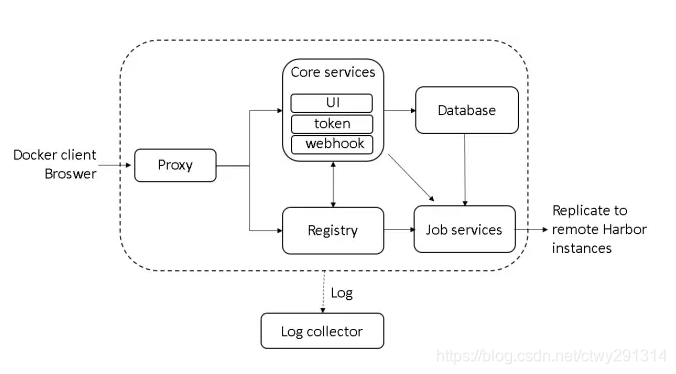
Registry:负责存储 docker 镜像,处理上传/下载命令。对用户进行访问控制,它指向一个 token 服务,强制用户的每次 docker pull/push 请求都要携带一个合法的 token,registry 会通过公钥对 token 进行解密验证
Core service:核心功能
- UI:图形界面
- Webhook:及时获取 registry 上 image 状态变化情况,在 registry 上配置 webhook,把状态变化传递给 UI 模块
- Token 服务:复杂根据用户权限给每个 docker pull/push 命令签发 token。Docker 客户端向 registry 服务发起的请求,如果不包含 token,会被重定向到这里,获得 token 后再重新向 registry 进行请求
部署
宿主机环境是 Mac
直接用离线安装的方式部署,下载离线包(这里下载的是 amd64 架构,不过有 rosetta 在问题不大): https://github.com/goharbor/harbor/releases
此时最新版本是 2.14.2

修改配置文件
cp harbor.yml.tmpl  harbor.yml
mkdir -p opt     # 用于存放harbor的持久化数据
harbor.yml 主要修改的内容:路径映射,ip域名,关闭 https
# The IP address or hostname to access admin UI and registry service.
# DO NOT use localhost or 127.0.0.1, because Harbor needs to be accessed by external clients.
hostname: 192.168.77.94

# http related config
http:
  # port for http, default is 80. If https enabled, this port will redirect to https port
  port: 8999

# https related config
# https:
#   # https port for harbor, default is 443
#   port: 443
#   # The path of cert and key files for nginx
#   certificate: /your/certificate/path
#   private_key: /your/private/key/path
#   # enable strong ssl ciphers (default: false)
#   # strong_ssl_ciphers: false

# The initial password of Harbor admin
# It only works in first time to install harbor
# Remember Change the admin password from UI after launching Harbor.
harbor_admin_password: Harbor12345

# Harbor DB configuration
database:
  # The password for the user('postgres' by default) of Harbor DB. Change this before any production use.
  password: root123
  # The maximum number of connections in the idle connection pool. If it <=0, no idle connections are retained.
  max_idle_conns: 100
  # The maximum number of open connections to the database. If it <= 0, then there is no limit on the number of open connections.
  # Note: the default number of connections is 1024 for postgres of harbor.
  max_open_conns: 900
  # The maximum amount of time a connection may be reused. Expired connections may be closed lazily before reuse. If it <= 0, connections are not closed due to a connection's age.
  # The value is a duration string. A duration string is a possibly signed sequence of decimal numbers, each with optional fraction and a unit suffix, such as "300ms", "-1.5h" or "2h45m". Valid time units are "ns", "us" (or "µs"), "ms", "s", "m", "h".
  conn_max_lifetime: 5m
  # The maximum amount of time a connection may be idle. Expired connections may be closed lazily before reuse. If it <= 0, connections are not closed due to a connection's idle time.
  # The value is a duration string. A duration string is a possibly signed sequence of decimal numbers, each with optional fraction and a unit suffix, such as "300ms", "-1.5h" or "2h45m". Valid time units are "ns", "us" (or "µs"), "ms", "s", "m", "h".
  conn_max_idle_time: 0

# The default data volume
data_volume: ~/DevOps/Harbor/opt


# Log configurations
log:
  # options are debug, info, warning, error, fatal
  level: info
  # configs for logs in local storage
  local:
    # Log files are rotated log_rotate_count times before being removed. If count is 0, old versions are removed rather than rotated.
    rotate_count: 50
    # Log files are rotated only if they grow bigger than log_rotate_size bytes. If size is followed by k, the size is assumed to be in kilobytes.
    # If the M is used, the size is in megabytes, and if G is used, the size is in gigabytes. So size 100, size 100k, size 100M and size 100G
    # are all valid.
    rotate_size: 200M
    # The directory on your host that store log
    location: ~/DevOps/Harbor/log
然后执行 install.sh 安装脚本即可
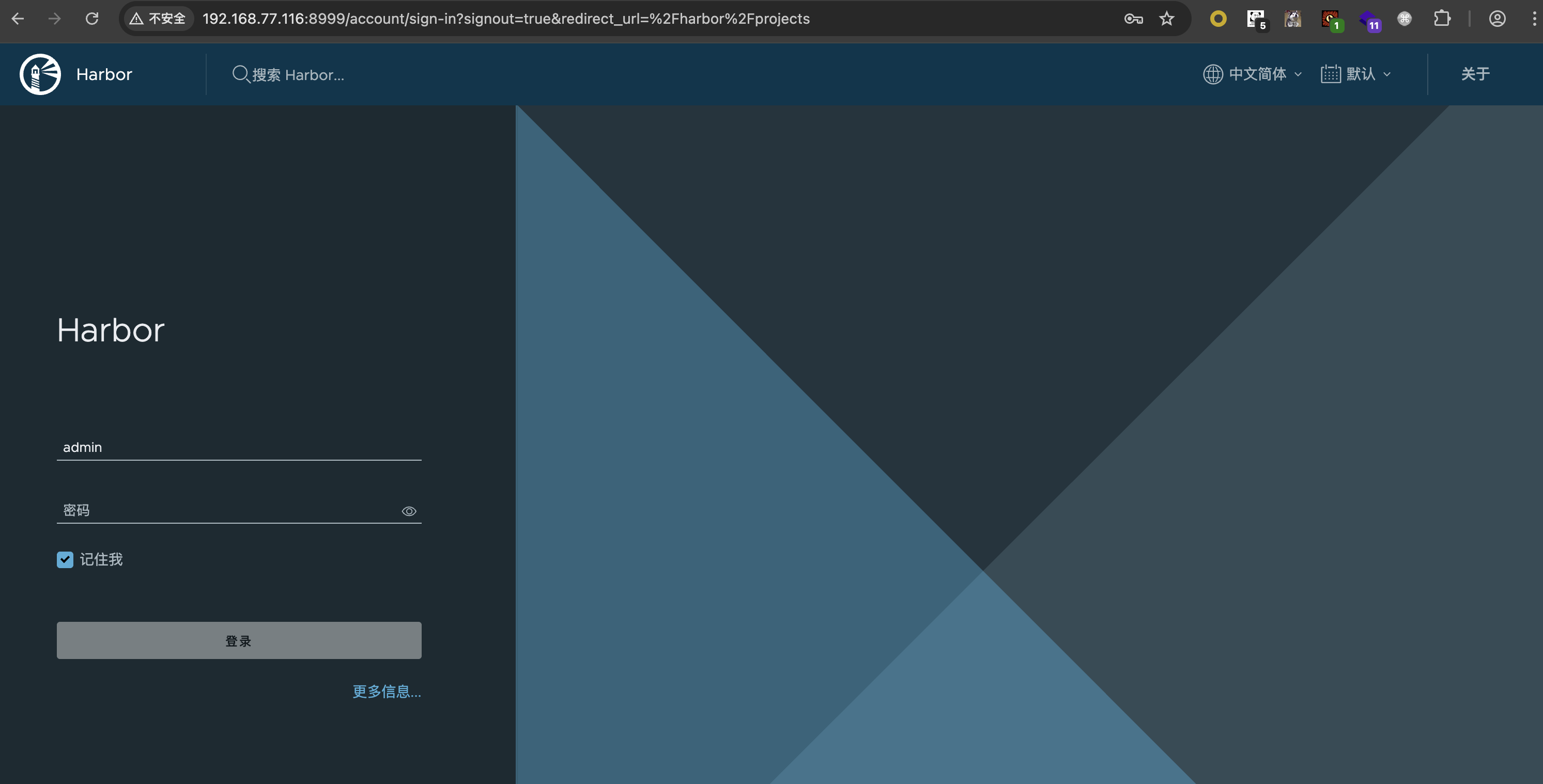
帐密 admin:Harbor12345
使用
docker 登录 registry
这一步用来熟悉一下 docker login 的操作,不是必须的
首先修改 docker-compose.yml,把 registry 的认证端口暴露出来
registry:
  image: goharbor/registry-photon:v2.14.2
  container_name: registry
  restart: always
  cap_drop:
    - ALL
  cap_add:
    - CHOWN
    - SETGID
    - SETUID
  volumes:
    - /Users/mashiro/DevOps/Harbor/opt/registry:/storage:z
    - ./common/config/registry/:/etc/registry/:z
    - type: bind
      source: /Users/mashiro/DevOps/Harbor/opt/secret/registry/root.crt
      target: /etc/registry/root.crt
    - type: bind
      source: ./common/config/shared/trust-certificates
      target: /harbor_cust_cert
  networks:
    - harbor
  depends_on:
    - log
  logging:
    driver: "syslog"
    options:
      syslog-address: "tcp://localhost:1514"
      tag: "registry"
  ports:
    - 5000:5000
然后尝试登录
❯ docker login 192.168.77.94:5000
Username: admin
Password:
Error response from daemon: Get "https://192.168.77.94:5000/v2/": http: server gave HTTP response to HTTPS client
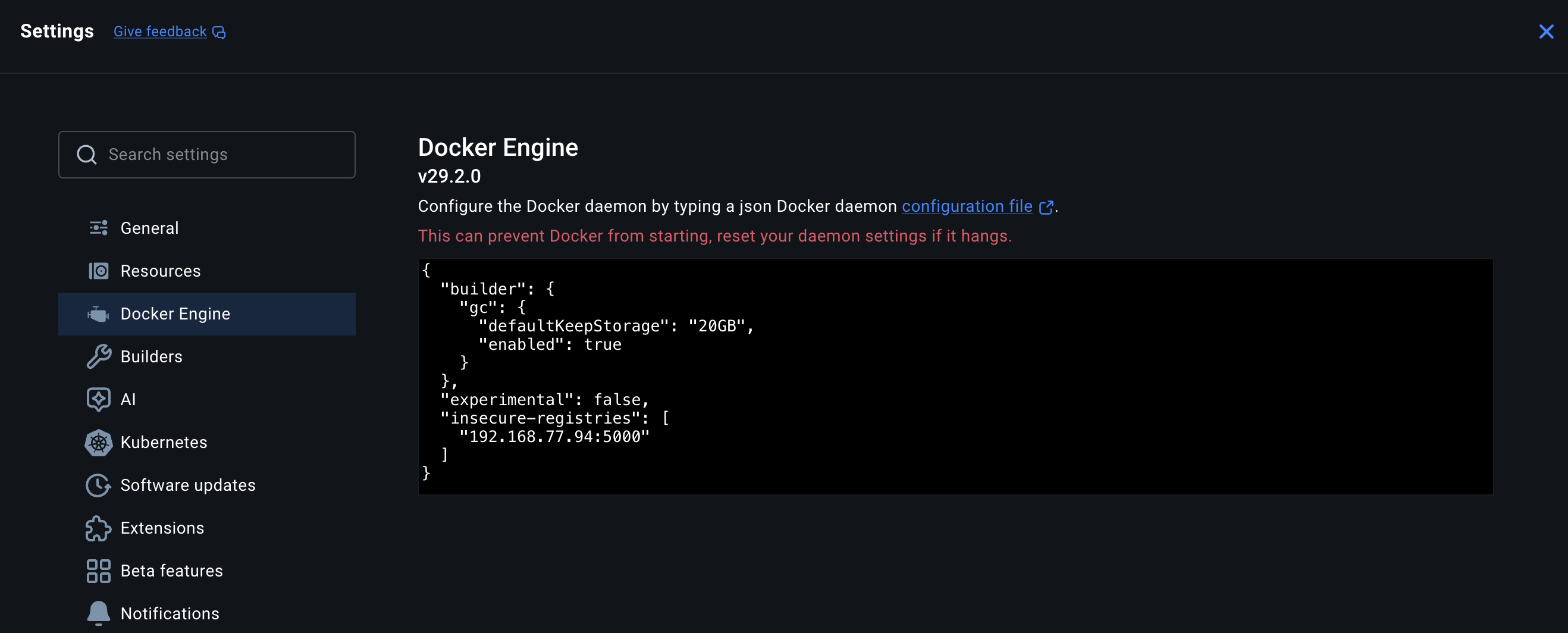
Docker 自从 1.3.x 之后 docker registry 交互默认使用的是 HTTPS,但是我们搭建私有镜像默认使用的是 HTTP 服务,所以与私有镜像交互时以 https 访问会导致出错
解决办法是修改 daemon.json,加上这一段
"insecure-registries": [
 "192.168.77.94"
]
然后重启 docker 服务
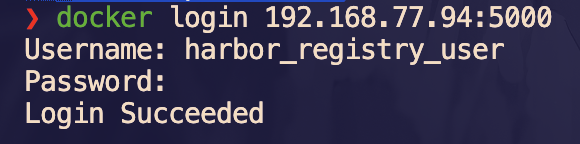
接下来就能连接了,帐密在 common/config/core/env 下的 REGISTRY_CREDENTIAL_USERNAME 和 REGISTRY_CREDENTIAL_PASSWORD
## 创建新项目并上传
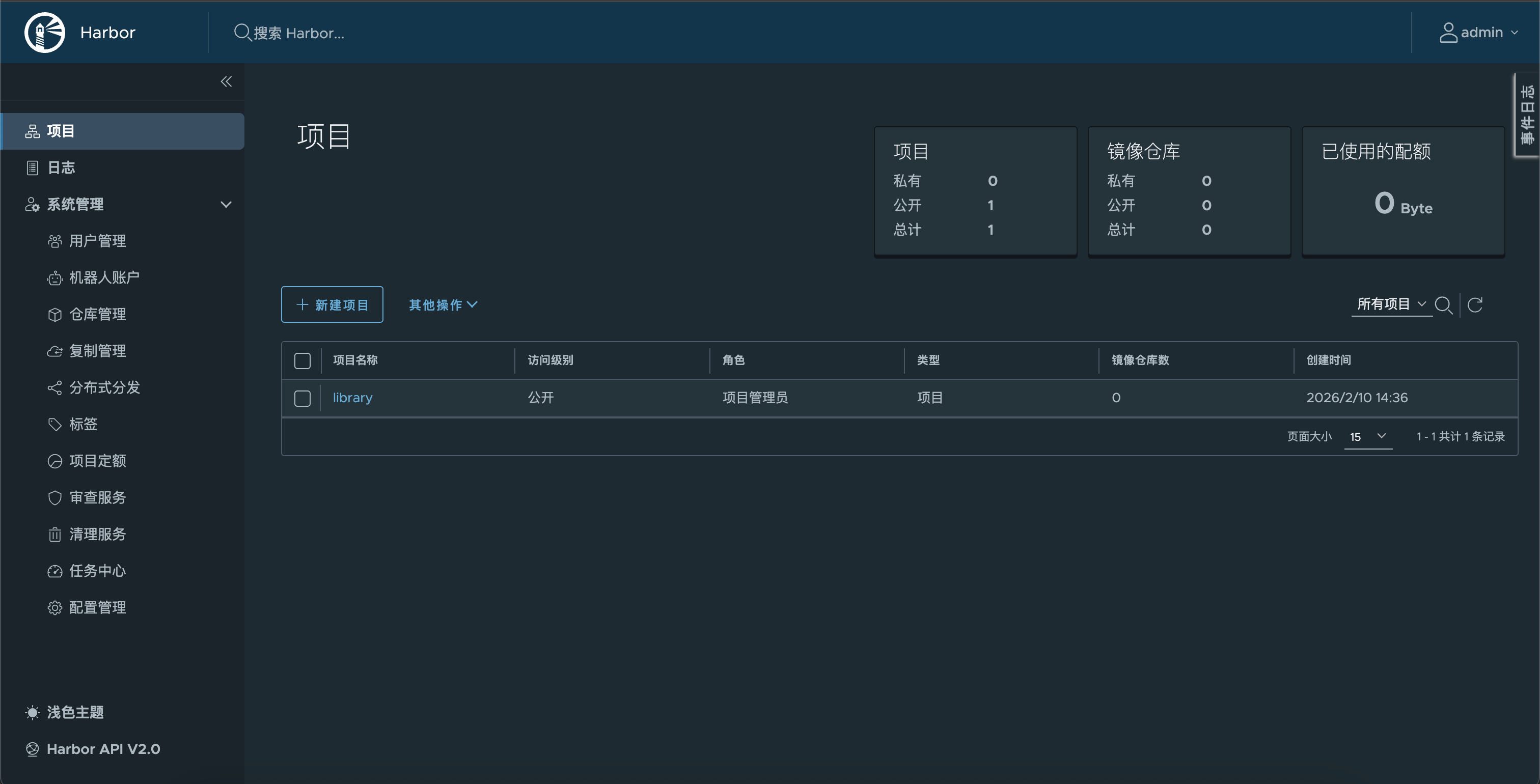
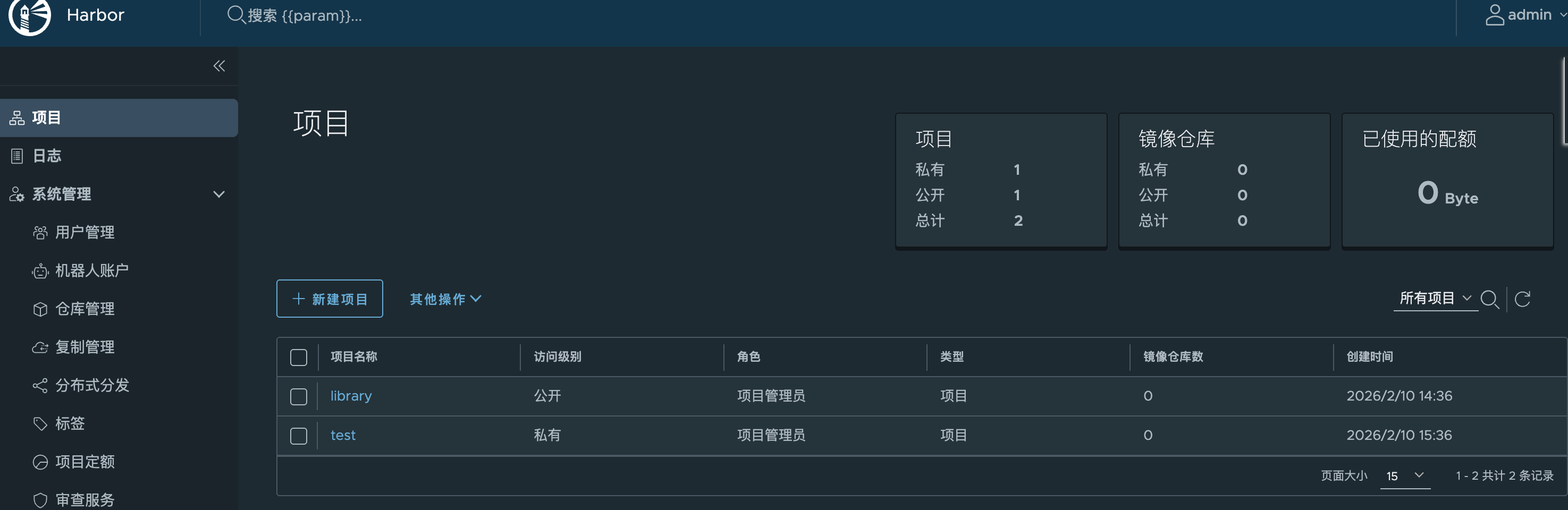
在 Harbor 上创建一个新项目 test 供上传使用
还需要把 8999 端口也加入到 insecure-registries 中
"insecure-registries": [
  "192.168.77.94:5000",
  "192.168.77.94:8999"
]
重启 docker 服务
尝试推送镜像
❯ docker tag busybox:latest 192.168.77.94:8999/test/busybox:latest

❯ docker push 192.168.77.94:8999/test/busybox:latest
The push refers to repository [192.168.77.94:8999/test/busybox]
499bcf3c8ead: Unavailable
push access denied, repository does not exist or may require authorization: authorization failed: no basic auth credentials
此时需要登录 8999,帐密就是 web 端登录的
❯ docker login 192.168.77.94:8999
Username: admin
Password:
Login Succeeded
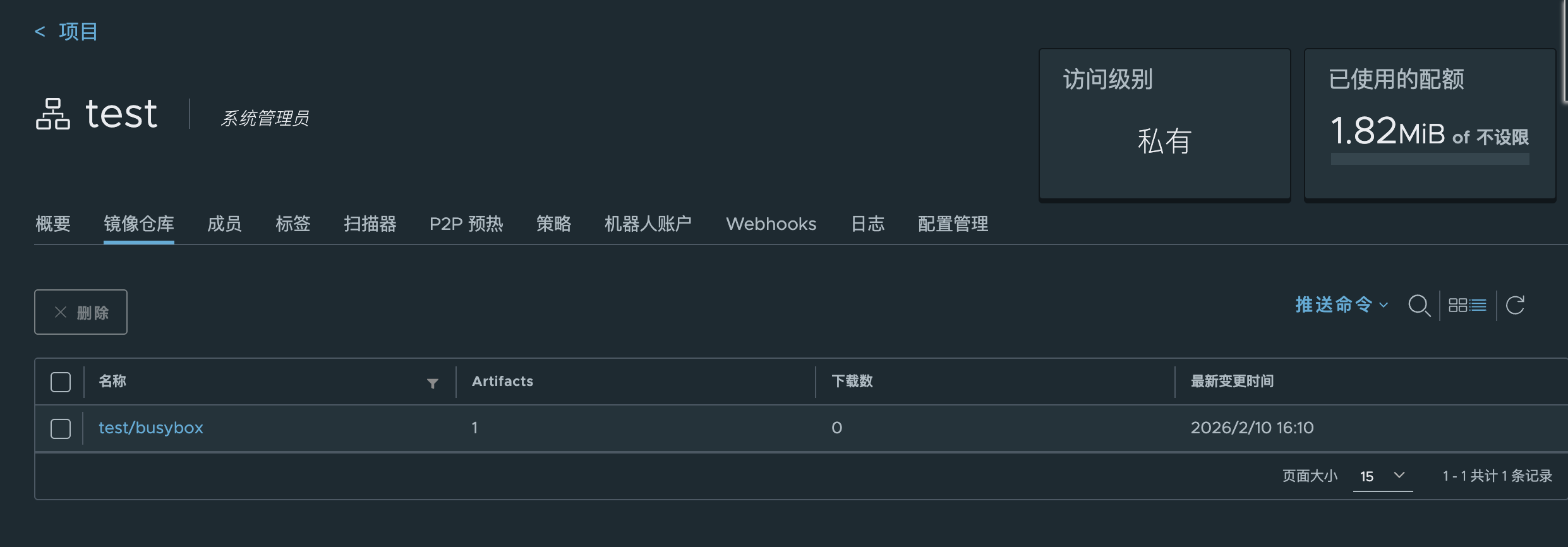
思考🤔:那其实前面好像没有必要登录 5000 端口,直接登录 8999 端口就行了
部署过程分析
install.sh
#!/bin/bash

set -e

DIR="$(cd "$(dirname "$0")" && pwd)"
source $DIR/common.sh

set +o noglob

usage=$'Please set hostname and other necessary attributes in harbor.yml first. DO NOT use localhost or 127.0.0.1 for hostname, because Harbor needs to be accessed by external clients.
Please set --with-trivy if needs enable Trivy in Harbor.
Please do NOT set --with-chartmuseum, as chartmusuem has been deprecated and removed.
Please do NOT set --with-notary, as notary has been deprecated and removed.'
item=0

# clair is deprecated
with_clair=$false
# trivy is not enabled by default
with_trivy=$false

# flag to using docker compose v1 or v2, default would using v1 docker-compose
DOCKER_COMPOSE=docker-compose

while [ $# -gt 0 ]; do
        case $1 in
            --help)
            note "$usage"
            exit 0;;
            --with-trivy)
            with_trivy=true;;
            *)
            note "$usage"
            exit 1;;
        esac
        shift || true
done

workdir="$( cd "$( dirname "${BASH_SOURCE[0]}" )" && pwd )"
cd $workdir

h2 "[Step $item]: checking if docker is installed ..."; let item+=1
check_docker

h2 "[Step $item]: checking docker-compose is installed ..."; let item+=1
check_dockercompose

if [ -f harbor*.tar.gz ]
then
    h2 "[Step $item]: loading Harbor images ..."; let item+=1
    docker load -i ./harbor*.tar.gz
fi
echo ""

h2 "[Step $item]: preparing environment ...";  let item+=1
if [ -n "$host" ]
then
    sed "s/^hostname: .*/hostname: $host/g" -i ./harbor.yml
fi

h2 "[Step $item]: preparing harbor configs ...";  let item+=1
prepare_para=
if [ $with_trivy ]
then
    prepare_para="${prepare_para} --with-trivy"
fi

./prepare $prepare_para
echo ""

if [ -n "$DOCKER_COMPOSE ps -q"  ]
    then
        note "stopping existing Harbor instance ..."
        $DOCKER_COMPOSE down -v
fi
echo ""

h2 "[Step $item]: starting Harbor ..."
$DOCKER_COMPOSE up -d

success $"----Harbor has been installed and started successfully.----"
引入 common.sh 检查 docker 和 docker-compose 环境后,导入 tar 包
然后解析 harbor.yml 作为参数给 prepare
prepare:
#!/bin/bash
set -e

# If compiling source code this dir is harbor's make dir.
# If installing harbor via package, this dir is harbor's root dir.
if [[ -n "$HARBOR_BUNDLE_DIR" ]]; then
    harbor_prepare_path=$HARBOR_BUNDLE_DIR
else
    harbor_prepare_path="$( cd "$(dirname "$0")" ; pwd -P )"
fi
echo "prepare base dir is set to ${harbor_prepare_path}"

# Clean up input dir
rm -rf ${harbor_prepare_path}/input
# Create a input dirs
mkdir -p ${harbor_prepare_path}/input
input_dir=${harbor_prepare_path}/input

# Copy harbor.yml to input dir
if [[ ! "$1" =~ ^\-\- ]] && [ -f "$1" ]
then
    cp $1 $input_dir/harbor.yml
    shift
else
    if [ -f "${harbor_prepare_path}/harbor.yml" ];then
        cp ${harbor_prepare_path}/harbor.yml $input_dir/harbor.yml
    else
        echo "no config file: ${harbor_prepare_path}/harbor.yml"
        exit 1
    fi
fi

data_path=$(grep '^[^#]*data_volume:' $input_dir/harbor.yml | awk '{print $NF}')

# If previous secretkeys exist, move it to new location
previous_secretkey_path=/data/secretkey
previous_defaultalias_path=/data/defaultalias

if [ -f $previous_secretkey_path ]; then
    mkdir -p $data_path/secret/keys
    mv $previous_secretkey_path $data_path/secret/keys
fi
if [ -f $previous_defaultalias_path ]; then
    mkdir -p $data_path/secret/keys
    mv $previous_defaultalias_path $data_path/secret/keys
fi


# Create secret dir
secret_dir=${data_path}/secret
config_dir=$harbor_prepare_path/common/config

# Set the prepare base dir, for mac, it should be $HOME, for linux, it should be /
# The certificate and the data directory in harbor.yaml should be sub directories of $HOME when installing Harbor in MacOS
prepare_base_dir=/
if [ "$(uname)" == "Darwin" ]; then
    prepare_base_dir=$HOME
fi

# Run prepare script
docker run --rm -v $input_dir:/input \
                    -v $data_path:/data \
                    -v $harbor_prepare_path:/compose_location \
                    -v $config_dir:/config \
                    -v ${prepare_base_dir}:/hostfs${prepare_base_dir} \
                    --privileged \
                    goharbor/prepare:v2.14.2 prepare $@

echo "Clean up the input dir"
# Clean up input dir
rm -rf ${harbor_prepare_path}/input
直接执行 prepare 后可以发现生成了 docker-compose.yml 和 common 配置文件夹
common/config
├── core
│   ├── app.conf
│   ├── certificates
│   └── env
├── db
│   └── env
├── jobservice
│   ├── config.yml
│   └── env
├── log
│   ├── logrotate.conf
│   └── rsyslog_docker.conf
├── nginx
│   ├── conf.d
│   └── nginx.conf
├── portal
│   └── nginx.conf
├── registry
│   ├── config.yml
│   ├── passwd
│   └── root.crt
├── registryctl
│   ├── config.yml
│   └── env
└── shared
    └── trust-certificates
详细每个服务的配置都可以在对应的 config 文件夹里面修改
比如上面 harbor.yml 填的 hostname 其实只影响了 core/env
导入镜像
harbor-init:
  image: docker:27-cli
  container_name: harbor-init
  restart: "no"
  depends_on:
    - harbor-proxy
  volumes:
    - /var/run/docker.sock:/var/run/docker.sock
    - ./harbor/init:/init:ro
  environment:
    HARBOR_REGISTRY: localhost:8999
    HARBOR_USER: admin
    HARBOR_PASSWORD: Harbor12345
    HARBOR_WAIT_SECONDS: "300"
    HARBOR_IMAGES_FILE: /init/images.txt
  entrypoint:
    - /bin/sh
    - /init/setup.sh
  networks:
    - harbor
setup.sh
#!/usr/bin/env sh
set -eu

HARBOR_REGISTRY="${HARBOR_REGISTRY:-localhost:8999}"
HARBOR_USER="${HARBOR_USER:-admin}"
HARBOR_PASSWORD="${HARBOR_PASSWORD:-Harbor12345}"
HARBOR_WAIT_SECONDS="${HARBOR_WAIT_SECONDS:-300}"
IMAGES_FILE="${HARBOR_IMAGES_FILE:-/init/images.txt}"

wait_for_proxy() {
  elapsed=0
  while [ "$elapsed" -lt "$HARBOR_WAIT_SECONDS" ]; do
    status="$(docker inspect --format '{{if .State.Health}}{{.State.Health.Status}}{{else}}{{.State.Status}}{{end}}' harbor-proxy 2>/dev/null || true)"
    if [ "$status" = "healthy" ] || [ "$status" = "running" ]; then
      return 0
    fi

    sleep 2
    elapsed=$((elapsed + 2))
  done

  return 1
}

import_images() {
  while IFS=' ' read -r source target; do
    [ -n "${source:-}" ] || continue
    case "$source" in
      \#*)
        continue
        ;;
    esac

    if [ -z "${target:-}" ]; then
      echo "[WARN] Skip invalid line: $source"
      continue
    fi

    full_target="${HARBOR_REGISTRY}/${target}"
    echo "[*] Import $source -> $full_target"
    docker pull "$source" >/dev/null
    docker tag "$source" "$full_target"
    docker push "$full_target" >/dev/null
  done < "$IMAGES_FILE"
}

echo "[*] Waiting for Harbor proxy..."
if ! wait_for_proxy; then
  echo "[ERROR] Harbor proxy is not ready within ${HARBOR_WAIT_SECONDS}s"
  exit 1
fi

echo "[*] Logging in Harbor: ${HARBOR_REGISTRY}"
printf '%s' "$HARBOR_PASSWORD" | docker login "$HARBOR_REGISTRY" -u "$HARBOR_USER" --password-stdin >/dev/null

echo "[*] Importing repositories from ${IMAGES_FILE}"
import_images

echo "[+] Harbor repository import finished"